Deploy a Compute Engine VM Instance on GCP Using Terraform
8/12/2024 • VirtueCloud
What is Terraform ?
Terraform is an open-source Infrastructure as Code (IaC) tool developed by HashiCorp. It allows you to define, provision, and manage infrastructure across various cloud providers using a declarative configuration language. In this blog, we will provide a comprehensive guide to setting up Terraform for Google Cloud Platform (GCP) and a hands-on tutorial to provision infrastructure on GCP.
What is GCP ?
Google Cloud Platform (GCP) is a suite of cloud computing services provided by Google. It offers a wide range of cloud services, including computing, storage, data analytics, and machine learning, which run on the same infrastructure that Google uses internally for its end-user products like Google Search, Gmail, and YouTube. This blog will guide you through setting up Terraform for GCP and provide a hands-on tutorial to provision infrastructure on GCP.
Table of Contents -
- Prerequisites
- Understanding Google Cloud Platform (GCP)
- Setting Up Google Cloud Platform
- Installing Terraform
- Hands-On Tutorial: Provisioning a GCP Resource
- Conclusion
Prerequisites
Before you begin, ensure you have the following:
- A Google Cloud Platform (GCP) account. Click here to create one.
- Google Cloud SDK (gcloud) installed and configured.
- Terraform installed on your local machine.
- Basic knowledge of GCP and Terraform.
Let’s Dive Into Some of The GCP’s Services
Google Cloud Platform (GCP) is a suite of cloud computing services provided by Google. It offers a wide range of cloud services, including computing, storage, data analytics, and machine learning. Here are some key components of GCP:
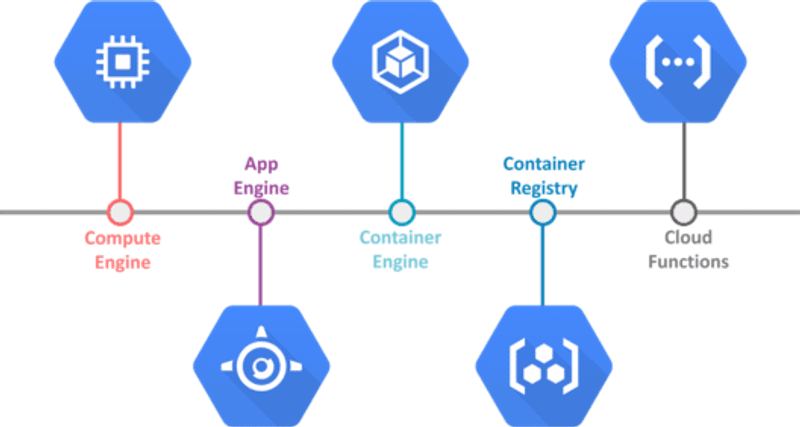
- Compute Engine: A scalable, high-performance virtual machine service that allows you to run virtual machines on Google’s infrastructure. It offers different machine types, customizable to meet your needs. If you are familiar with AWS, you can think of Compute Engine as similar to EC2 (Elastic Compute Cloud).
- Cloud Storage: A scalable object storage service that allows you to store and retrieve any amount of data at any time. It is ideal for storing large amounts of unstructured data.
- Google Kubernetes Engine (GKE): A managed environment for deploying, managing, and scaling containerized applications using Kubernetes, an open-source system for automating deployment, scaling, and management of containerized applications. For AWS users, this is akin to Amazon EKS (Elastic Kubernetes Service).
- BigQuery: A fully-managed, serverless data warehouse that enables super-fast SQL queries using the processing power of Google's infrastructure.
- Cloud Functions: A serverless execution environment for building and connecting cloud services. With Cloud Functions, you write simple, single-purpose functions that are attached to events emitted from your cloud infrastructure and services.
- App Engine: A fully managed serverless platform for developing and hosting web applications at scale. It automatically handles infrastructure concerns like hardware, patches, and scaling. This is similar to AWS Elastic Beanstalk.
By understanding these components, you can better appreciate the versatility and power of GCP in meeting various infrastructure and application needs. In this tutorial, we will focus on Compute Engine to demonstrate how to deploy infrastructure using Terraform.
Setup a GCP Project
1. Create a GCP Project
- Go to the GCP console and create a new project -
- Click on the project dropdown and select "New Project".
- Give your project a name and make a note of the project ID.
2. Enable Required APIs
- Compute Engine API -
- Navigate to "APIs & Services" > "Library" and search for "Compute Engine API" and enable it.
- IAM API -
- Similarly, enable the "IAM API".
3. Create a Service Account
- Navigate to IAM & Admin -
- Go to the IAM & Admin section in the GCP Console.
- Create a New Service Account -
- Click on "Service Accounts" and then "Create Service Account".
- Provide a name and description for the service account.
- Assign the following roles: Compute Admin and Storage Admin.
- Click "Done" and then generate a JSON key for this service account. Download and save the key file securely.
Installing Terraform
Open Terminal and Run: terraform --version
Ensure you see the version number to confirm that Terraform is installed correctly. If not installed click here and follow the terraform install guide.
Let’s Provision a Compute Engine VM Instance
Create Terraform Configuration Files
Create a Directory for Terraform Files:
mkdir terraform-gcp
cd terraform-gcp
Inside this directory create a filed named main.tf:
provider "google"{
  credentials = file(var.credentials)
  project     = var.project
  region      = var.region
}
resource "google_compute_instance" "vm_instance" {
  name         = "terraform-instance"
  machine_type = "f1-micro"
  zone         = var.zone


  boot_disk {
    initialize_params {
      image = "debian-cloud/debian-11"
    }
  }
  network_interface {
    network = "default"


    access_config {
    }
  }
  service_account {
    email  = var.service_account_email
    scopes = ["cloud-platform"]
  }
}
Create variables.tf :
variable "credentials" {
  description = "The path to the service account key file"
  type        = string
  default = "C:/Users/ABC/Terraform/GCP/Service_Acc_Key.json" #<path-to-your-service-account-key>"
}

variable "project" {
  description = "The GCP project ID"
  type        = string
  default = "<your-gcp-project-id>"
}

variable "region" {
  description = "The GCP region"
  type        = string
  default     = "asia-south1"
}

variable "zone" {
  description = "The GCP zone"
  type        = string
  default     = "asia-south1-a"
}

variable "service_account_email" {
  description = "Service Account Email"
  type        = string
  default = "<your-service-account-email-address>"
}
Init , Plan and Apply
Let's initialize the working directory :
terraform init
Once it is initialized , run :
terraform plan
It allows you to preview the changes terraform will make before you apply them.
After making sure the plan is accordingly correct, apply the changes by :
terraform apply
Confirm the apply by typing yes.
Verify the Provisioned Resources
Navigate to the Compute Engine section in the GCP Console to see your newly created instance. This is similar to checking the EC2 Dashboard in the AWS Management Console to verify your EC2 instance.
Conclusion
In this blog, we walked through the process of setting up Terraform for GCP and provisioning a basic Compute Engine instance. Terraform's declarative approach to infrastructure management simplifies the process of defining, provisioning, and managing cloud resources. Drawing parallels between GCP and AWS can help those familiar with AWS to transition smoothly to GCP.
Also Read
Related articles you might find interesting
Ingress Got You This Far — A Field Guide to Gateway API & HTTPRoute
Why platform teams are re-routing north-south traffic through the Kubernetes Gateway API, what HTTPRoute changes on the ground, and how to migrate without a big-bang rewrite.
AWS Graviton: High-Performance Compute with Energy Efficiency and Cost Savings
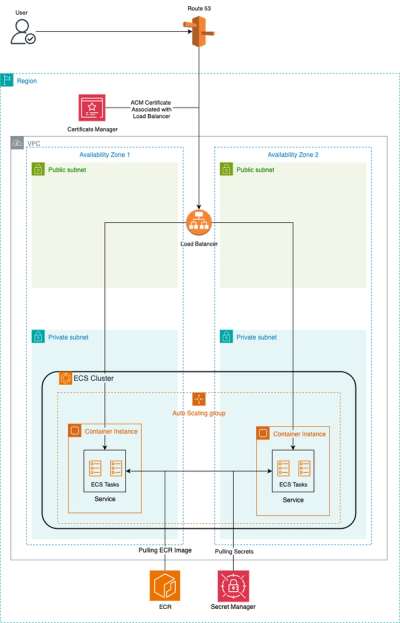
Automated ECS Deployment: Fargate or EC2, Make it easy with VirtueCloud
Hassle-Free ECS: Terraform Automation + CI/CD Pipeline